Code
1+1[1] 2The goal of this lab is to introduce you to R and RStudio, which we’ll be using throughout the course both to learn the statistical concepts discussed in the course and to analyze data and come to informed conclusions. To clarify which is which: R is the name of the programming language itself and RStudio is a convenient interface (Integrated Development Environment or IDE) for working with R. I like to think about R as the car engine and RStudio as a nice driver dashboard. Most R users (including professionals) work with RStudio.
If you have used R and RStudio before, feel free to use desktop version of the program. Otherwise, we will work with the cloud (online) version. To access RStudio, click on the following link and create an account or sign in: https://posit.cloud
After signing in to Rstudio, our next step is to create a new project. You can think of a project as a folder or simply a collection of files. To create the project, you start by clicking on “New Project” and then change the default name (UNTITLED PROJECT) to “MATH 145 Spring 2024”.
Yay! You now have your project ready. In the next section, we explain the meaning of the various panels on your screen.
Your new R studio project interface will look as follows:
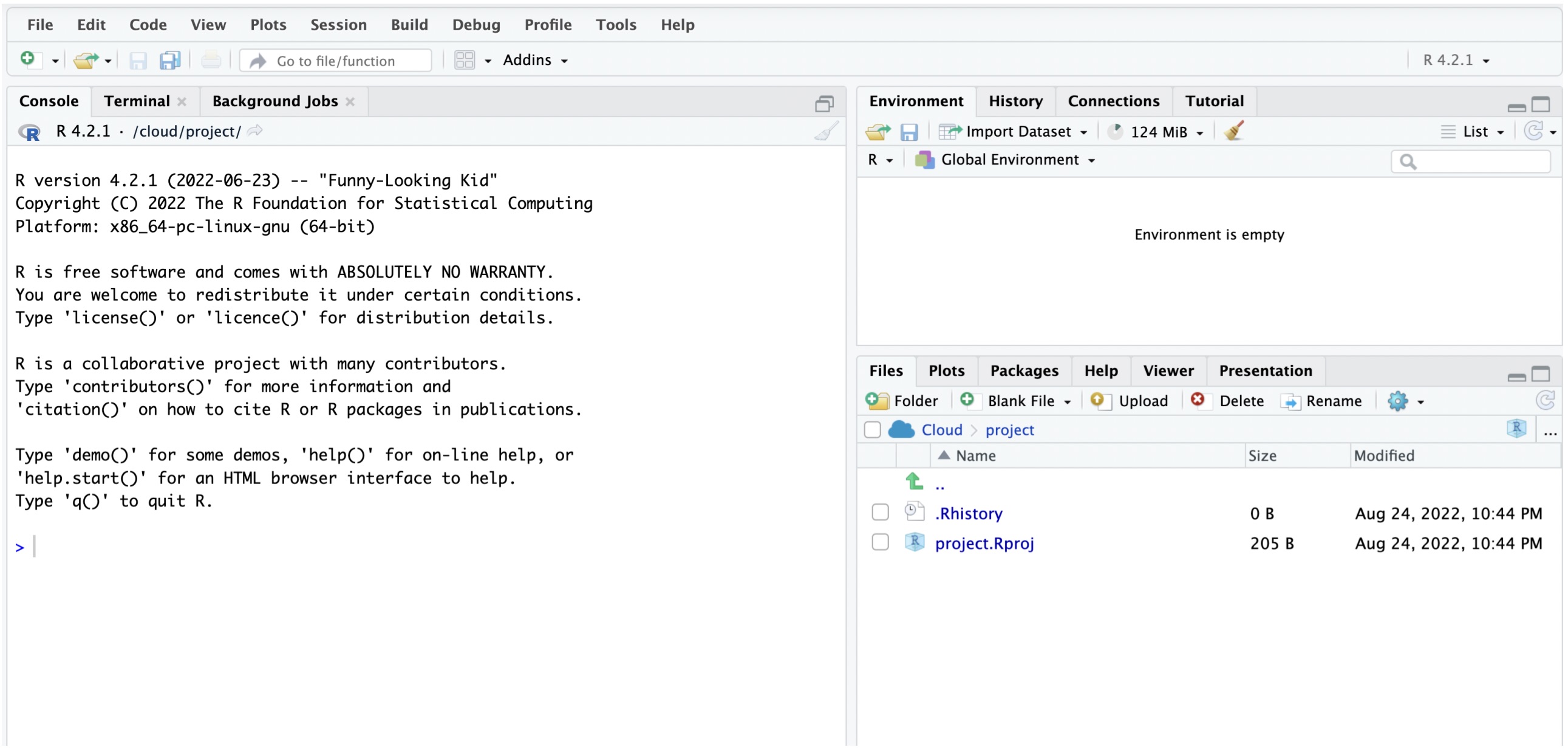
Left Panel: The panel on the left is where the action happens. This panel is called the console. Every time you launch RStudio, it will have the same text at the top of the console telling you the version of R that you’re running. Below that information is the symbol ” > “. This is where you enter your commands. When you enter and execute a command, the output will come right below it. These commands and their syntax have evolved over decades (literally) and now provide what many users feel is a fairly natural way to access data, organize, describe, and invoke statistical computations. Try typing 1 + 1 in the console and hit enter.
1+1[1] 2Upper Right Panel: The panel in the upper right contains your environment as well as a history of the commands that you’ve previously entered.
Bottom Right Panel: The panel in the lower right contains tabs for browsing the files in your project folder, access help files for R functions, install and manage R packages, and inspecting visualizations through the viewer tab. By default, all data visualizations you make will appear directly below the code you used to create them. If you would rather your plots appear in the plots tab, you will need to change your global options.
R is an open-source programming language, meaning that users can contribute packages that make our lives easier, and we can use them for free. Packages are simply pre-written code meant to serve specific purposes and may contain other packages inside them. Packages may also contain data sets. Packages are stored in a directory called “Library”. For this lab, and many others in the future, we will use the following two packages:
The tidyverse package is a very popular “umbrella” package which houses a suite of many different R packages: for data wrangling (including tidying) and data visualization.
The openintro package: contains some datasets and custom functions that come with the OpenIntro resources. You will notice that the readings frequently refer to data “contained in the OpenIntro Package”. This is the package that the text refers to.
The command to install a package in R takes the following format:
install.packages("package name")To install tidyverse and openintro, run the following commands:
install.packages("tidyverse")
install.packages("openintro")
Note:
library(tidyverse)
library(openintro)
Why Tidyverse? We are choosing to use the tidyverse package collection because it consists of a set of packages necessary for different aspects of working with data, anything from loading data to wrangling data to visualizing data to analyzing data. Additionally, these packages share common philosophies and are designed to work together. You can find more about the packages in the tidyverse at tidyverse.org.
Packages are installed in the project and can be accessed by any files created within the project. If you create a new project, you will need to install packages in the project. For this class, you will always be using the project that we created above. Files will be created inside this project.
When using R, it is common to create a file in which to write your code. This way, you won’t lose your work and can organize accordingly. There are many types of files that are supported in R. To start, we will create and use an R script but we will explore other types of files in future labs.
To create a new file, follow the steps below:
Click on file and hover to new file.
Click on R script
Save the file by clicking on file then save. A window will pop up asking for file name. Type the name Lab_01 (notice the underscore used instead of a blank space). Make sure the file extension .R is retained.
Click on save.
If you did everything correctly, the file you created should appear under the files section with the name Lab_01.R.
Suppose we want to find the mean of the numbers 216, 220,221, 222, 223, 224, 225, 226, and 227. The first step is to get these data into R. We can create an object called x that contains these values. We call such an object a vector and we create it as shown below. Copy this code and paste it into your script (line 1). Ensure that the cursor is at the end of the line (line 1) then click on Run. The object “x” should pop up under the environment area.
x <- c(216, 220,221, 222, 223, 224, 225, 226, 227)
# This is how you create a vector in R.
Take a moment to study the object x that appears in the environment area.
Important things to note:
If we have text that we do not intent to evaluate as code, we put a hashtag before it. Such a piece of text is called a comment in R. You may want to have a comment under line a saying that “this is how you create a vector in R”. You will notice that the text is greyed out.
The length of a vector is the number of elements that it contains. The above vector is of length 9.
We can do some arithmetic operations on numeric vectors such as the one created above (x). To find the mean, for example, we write and run the following code:
mean(x)
# This is how you find the mean.
To compute the standard deviation, you run the code sd(x), to find the median you run median(x), etc.
We can also create a string object (i.e., a series of non numerical elements) as shown in the example below:
y <- c( "Jane", "John", "Jess", "Jeff", "Joe", "Holli", "Henry", "Han", "Harvey")
# We use quotes for strings. If you put numeric entries in quotes, they will be treated as characters(non numeric values).
Create the object above and make sure it appears under the environment area. After that, run the command mean(y).
mean(y)What happens? Do you get an error (warning) message? Programming languages generally produce error messages when you try to perform an inappropriate operation or if you do not write your code using the correct syntax rules. In this case, the mean/average of a the object y does not make sense because the entries of y are not numeric.
Finding and fixing errors in code can be quite tedious. The process is known as debugging. The first step in debugging is to read the error message that R produces. If you cannot fix the error, there are many resources available online that can help. We will explore this at a later time.
You can, however, perform other operations on y. For example, you may want to know how many Jane entries are in y or how many entries have the letter H.
A data matrix has columns (variables) and rows (cases). You can create a data matrix (aka data frame) in R by combining vectors of equal length. Before we do that, let us create one more vector (a categorical one).
a<-c("F", "M", "F", "M", "M", "F", "M", "M", "M")You can combine the vectors a, x, and y into a data frame (data matrix) as follows. We store this in an object called practice_data and then print it. Note that we use an underscore to separate the words practice and data in the name. Do not use a blank space for object or variable names.
practice_data <- data.frame(name=y, sex=a, balance=x)Run the above code and make sure the object practice_data appears in the environment area.
On the next line run the code print (practice_data) to have a look at the data. You may also click on the object directly and the data will pop up in a new window.
Notice that the data frame looks like a more natural way that you are likely to encounter data. Most of the time, data is collected and stored in excel and can be imported into R for use. Throughout the labs, we will learn how to import data from various sources into R.
We can run various statistics from data frames. Because the data frame combines multiple vectors (variables) we need to specify the data frame name and the variable of interest. For example, to find the mean of the variable balance, we use the code mean(practice_data$balance).
mean(practice_data$balance)[1] 222.6667You can also find other statistics. For median, the command for median takes the form median(data$variable). For standard deviation, the command is sd(data$variable).
You can also run multiple summary statistics at once using the command summary(data$variable). See example below:
summary(practice_data$balance) Min. 1st Qu. Median Mean 3rd Qu. Max.
216.0 221.0 223.0 222.7 225.0 227.0 The summary command give you the minimum value, first quartile \((Q_1)\), median, mean\(\bar{x}\), third quartile \((Q_1)\) and maximum value.
You can create various kinds of plots/graphs in base R. In future labs, we will learn how to use a package known as ggplot2 that is popular for creating visualizations in R.
A dot plot can be used to visualize the distribution of a numerical variable. To create a dot plot, we use the code:
dotchart(practice_data$balance)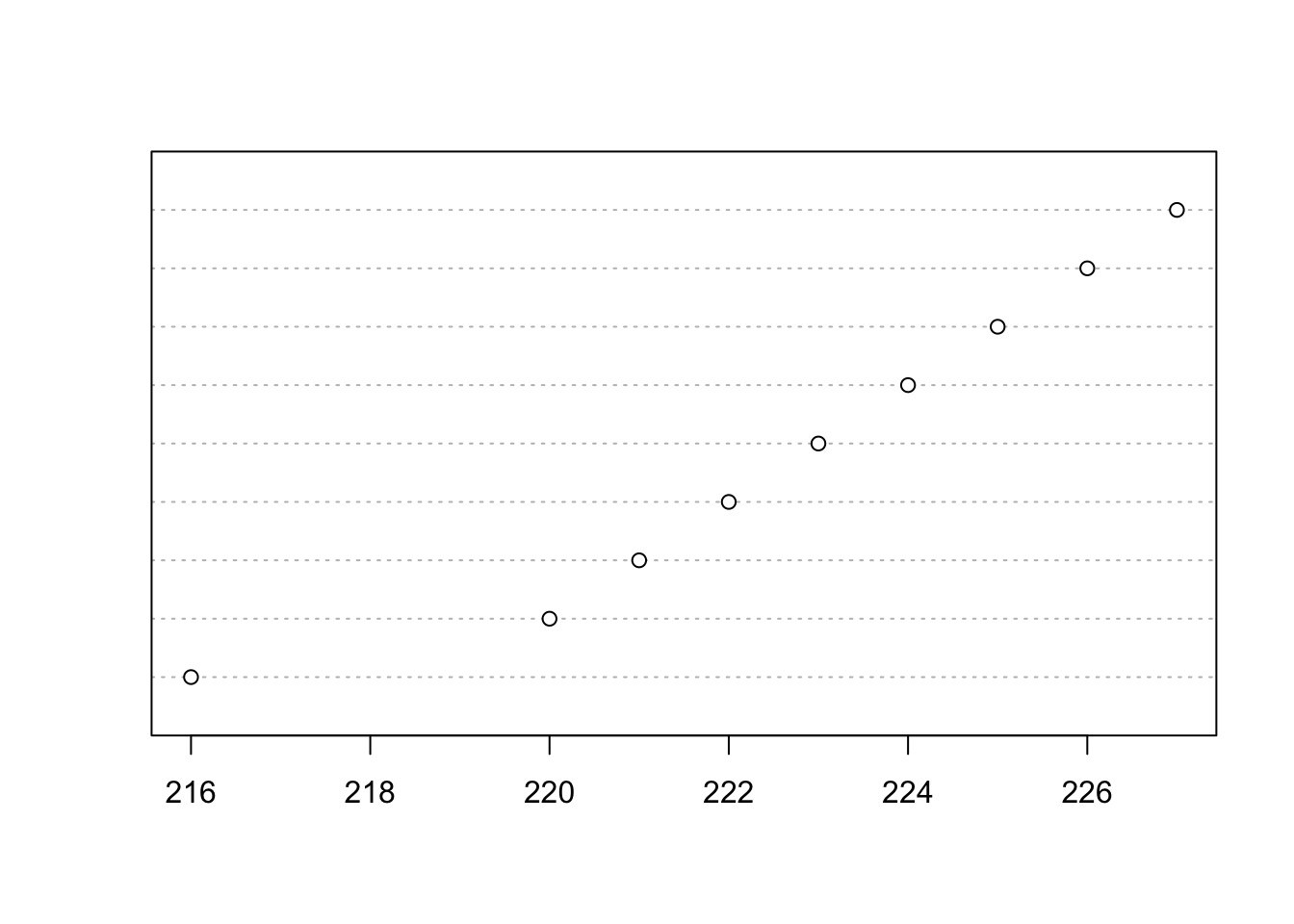
Histograms are also used to visualize a numeric variable. We can create a histogram for the variable balance as shown below:
hist(practice_data$balance)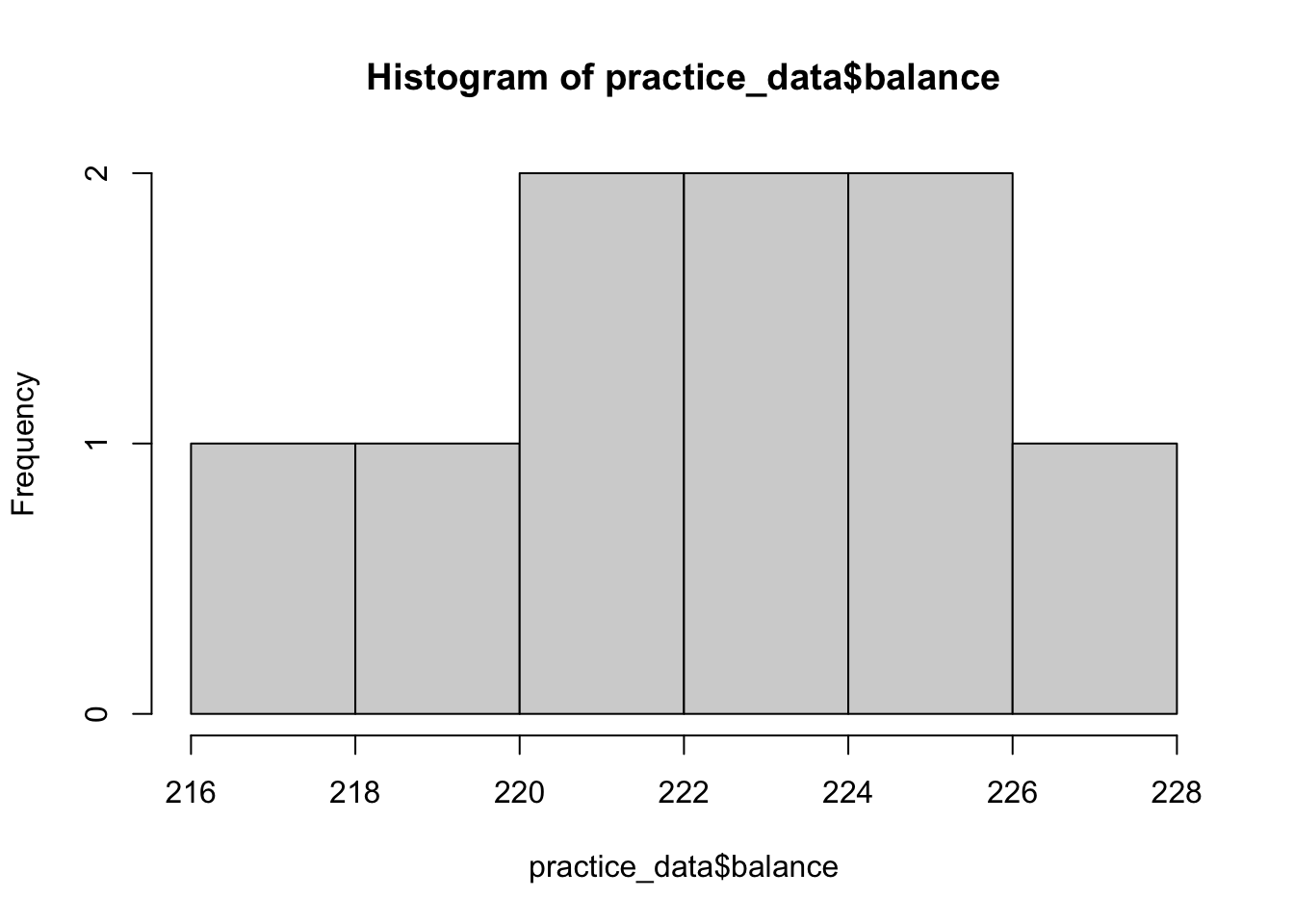
Box plots can also be used to visualize the distribution of a numeric variable. See code below:
boxplot(practice_data$balance)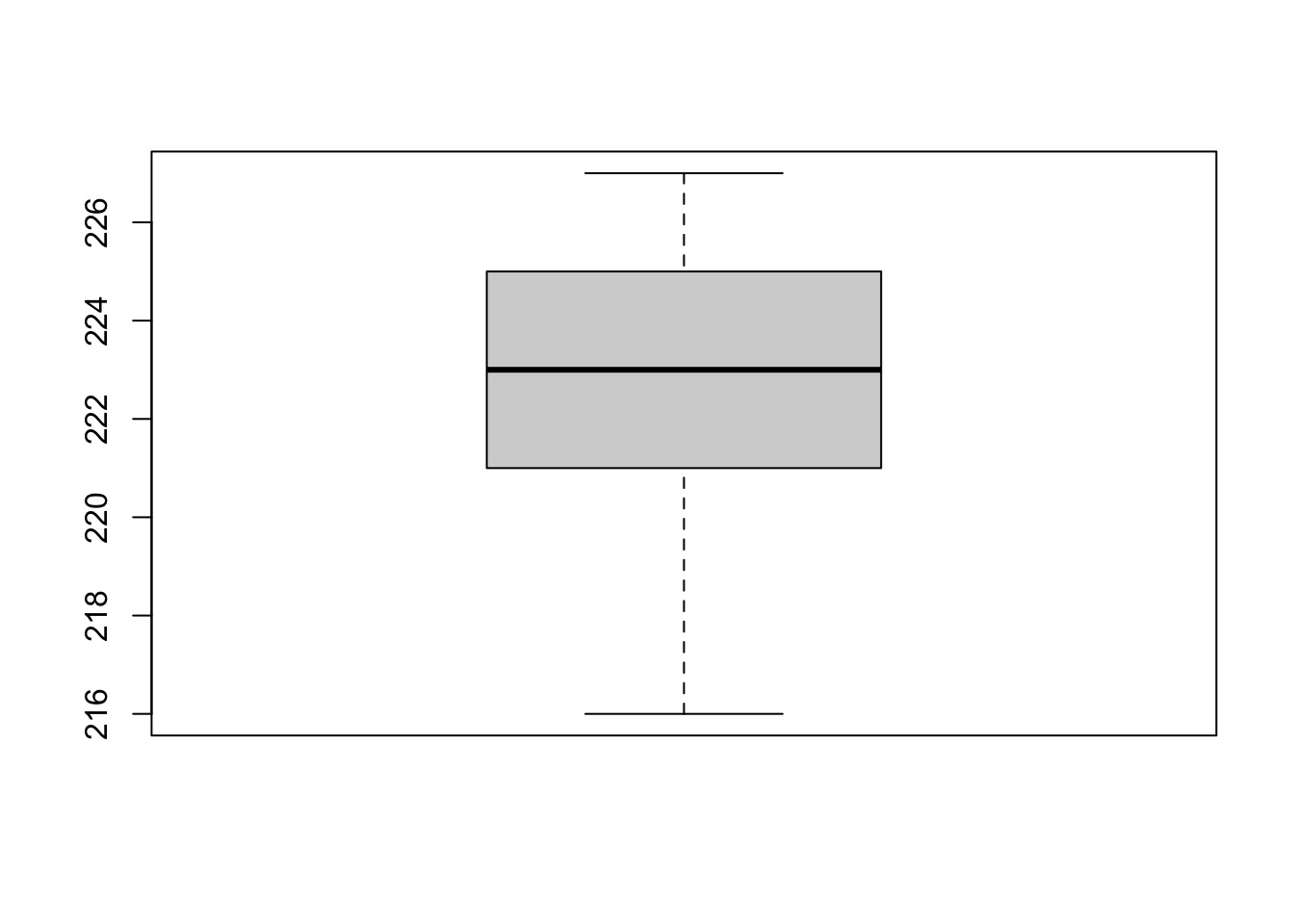
Scatter plots are mostly used to visualize relationships between two numerical variables. For example, if our data frame is called data and it contains two numerical variables called variable_1 and variable_2, we can create a scatter plot as follows:
plot(data$variable_1, data$variable_2)Create a vector (name it income) containing the following numerical elements: 750, 810, 680, 1200, 1500, 1399,1525.
Find the mean of the values in #1 above.
Create another vector with a name of your choosing and then combine it with the first vector to make a data frame called my_data.
Run the summary statistics for the income variable using the data frame you created in #3 above.
R comes with many pre-loaded data frames. One such data frame is called mtcars. Run the command ?mtcars to learn more about this data frame. Next, load this data frame into your work space by running the command data(mtcars).
Use the mtcars data frame to find the median horsepower of the cars.
Create a histogram to visualize the distribution of the variable hp. What can you say about the distribution of hp based on the histogram?